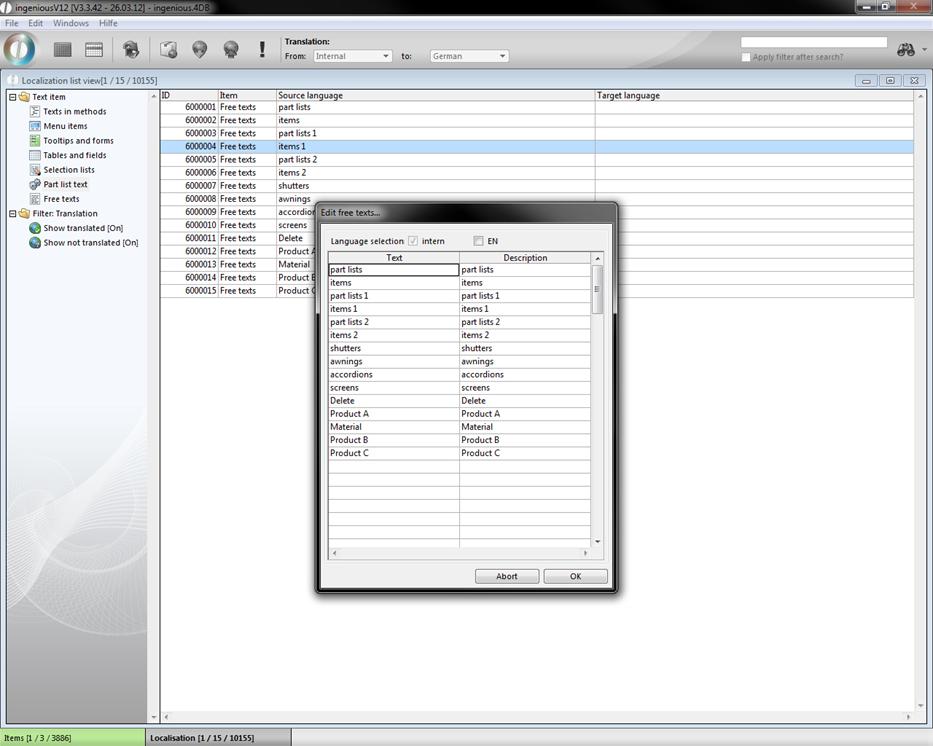
The localization manager is a comfortable tool for the translation of Ingenious.V12 into other languages. The translations can be done by a translator without the need for programming. With the localization manager, a special version of Ingenious.V12 for foreign branches or a partner edition for foreign clients can be created. In this manner, this management tool has an enormous impact for gaining new clients as well as for opening new markets.
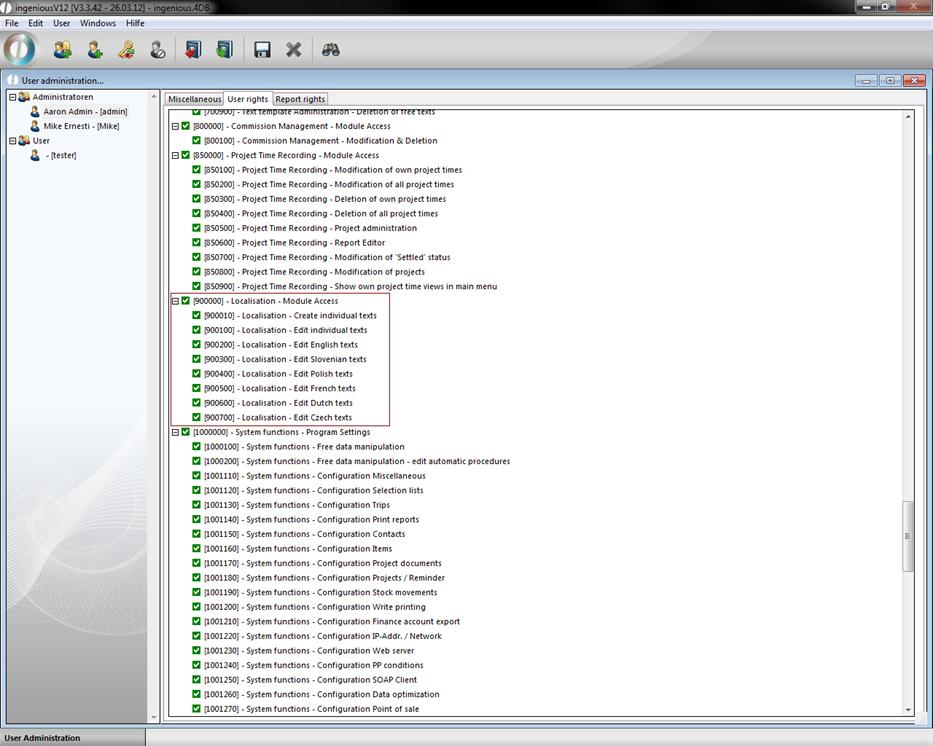
In order to start the localization program, the corresponding user rights have to be released in the user administration.
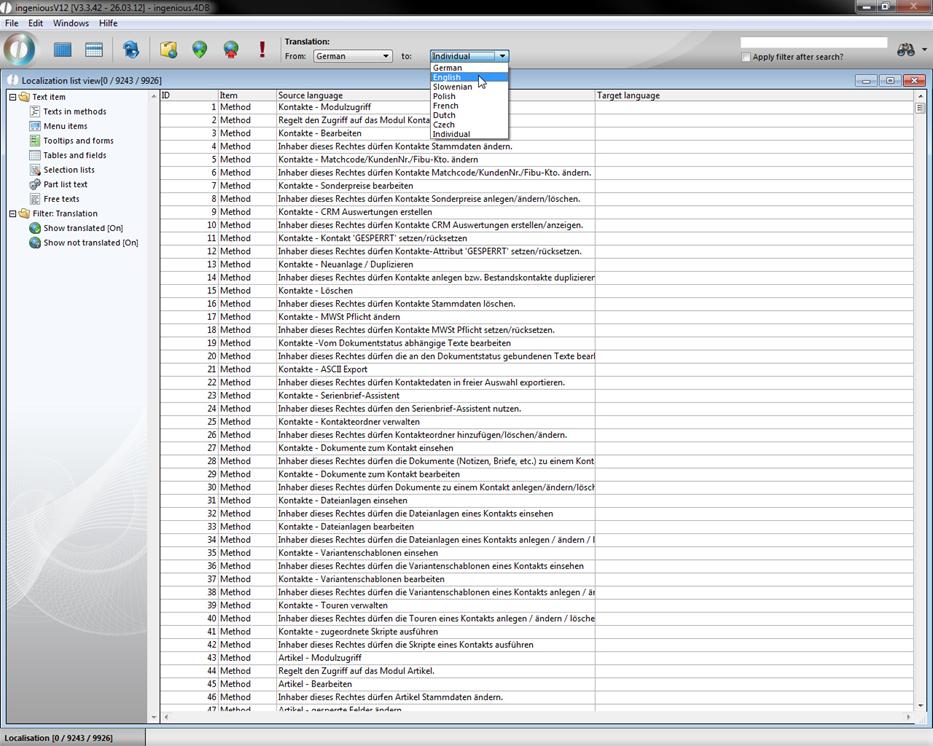
The source language of the translation can be selected. At this time, English, German and Slovenian texts are available. With the list in the left section area, you can determine which texts should be displayed. At the end of this chapter, we will refer to the application of the “Individual” language option in detail.
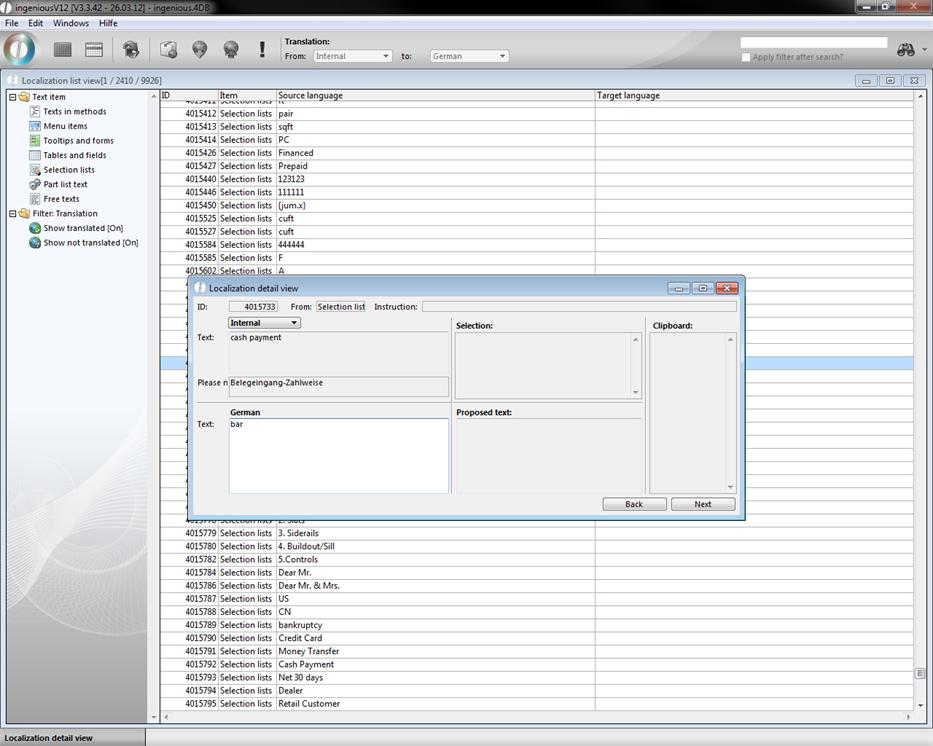
In order to translate a text, you have to double click on the text entry. A new window with the source text and an activated field for the target text (left column) appears. In order to speed up the translation, a list with similar translations can be displayed. For that, a paragraph must be selected and CTRL+H activated. All texts with translations are downloaded that contain the selected paragraph (middle column).
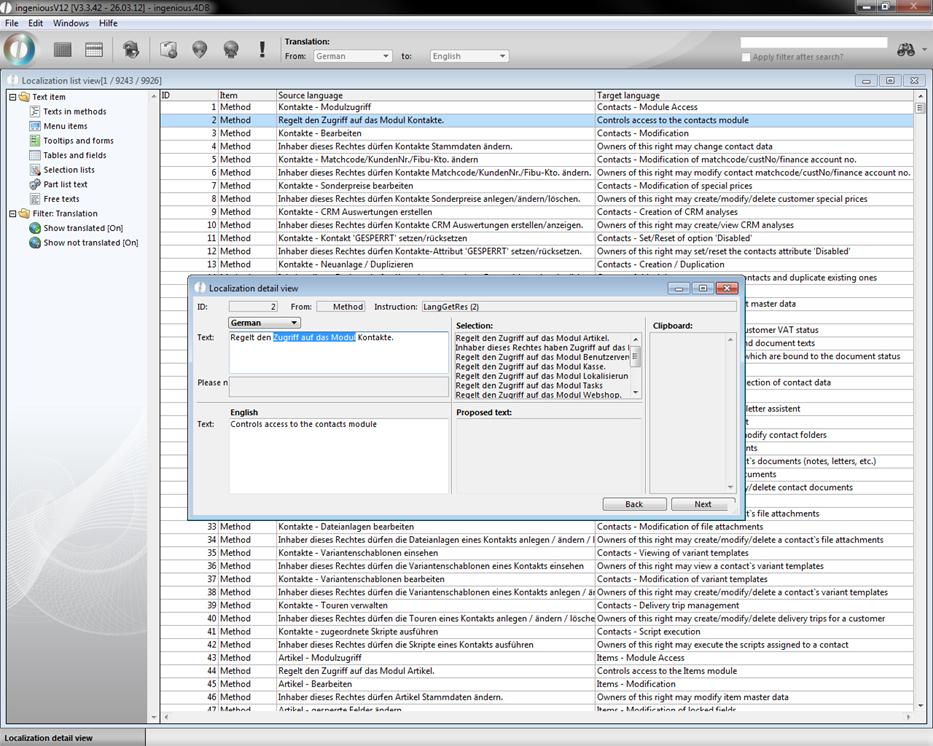
Frequently recurring words and word groups can be temporarily saved in the folder on the right side. For that, you select the desired text and press the F9 key.
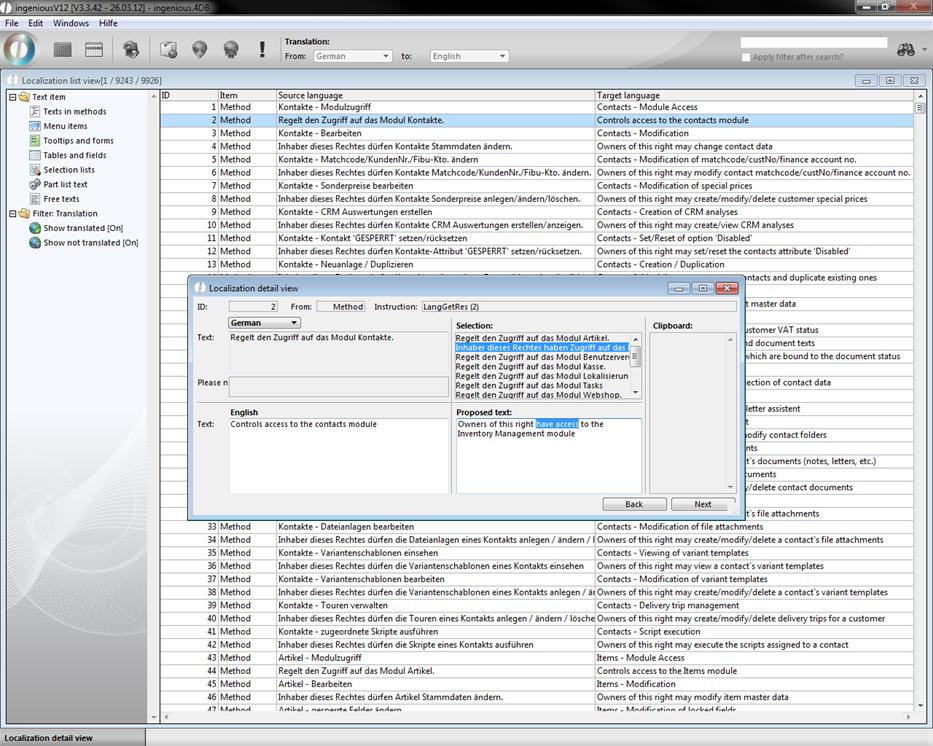
In order to insert a word group of the file into the target text, select the folder, place the cursor on the desired place in the target text by double-clicking. The paragraph must be highlighted and saved by pressing F12. Entries in the folder can be deleted by right-clicking.
Between the single translation texts, one can further switch with Enter, picture ↑, picture ↓ or the buttons can be forwarded. Within the texts, there is a placeholder where no translated is need. These placeholders are:
(%Cur) is replaced with € / $ / …
(%CurISO) is replaced with EUR / USD / SIT / …
(%1), (%2), … is dynamically replaced with each suitable printout (Variables)
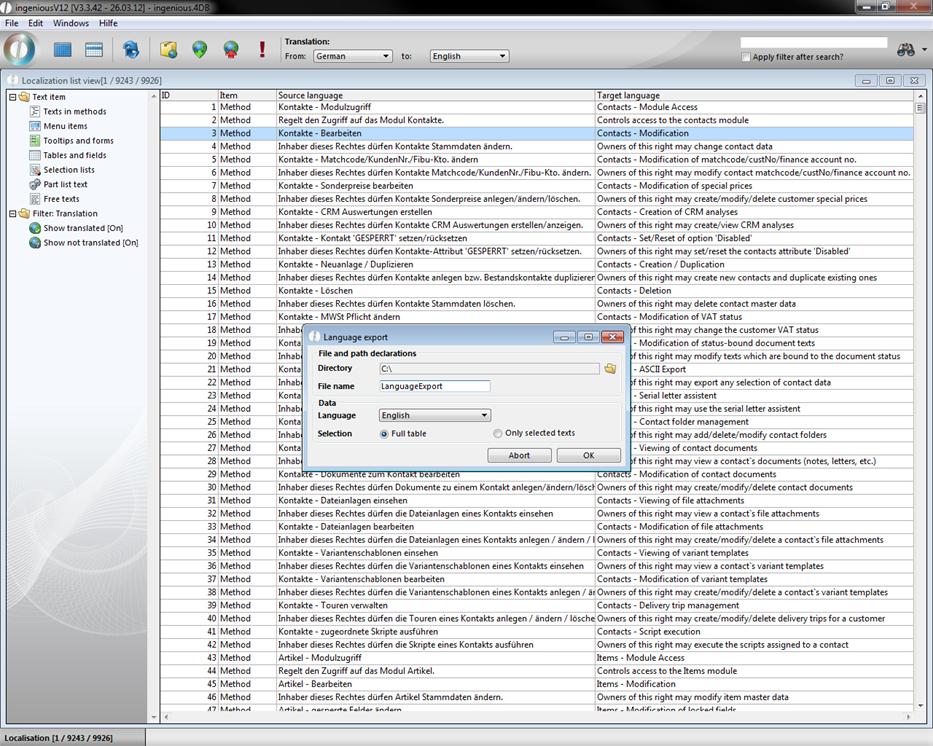
If all desired texts were entered, data can be saved in the list view and sent with the  export icon. In the opening window, the target directory, file name and data to be transferred, will be selected for language export.
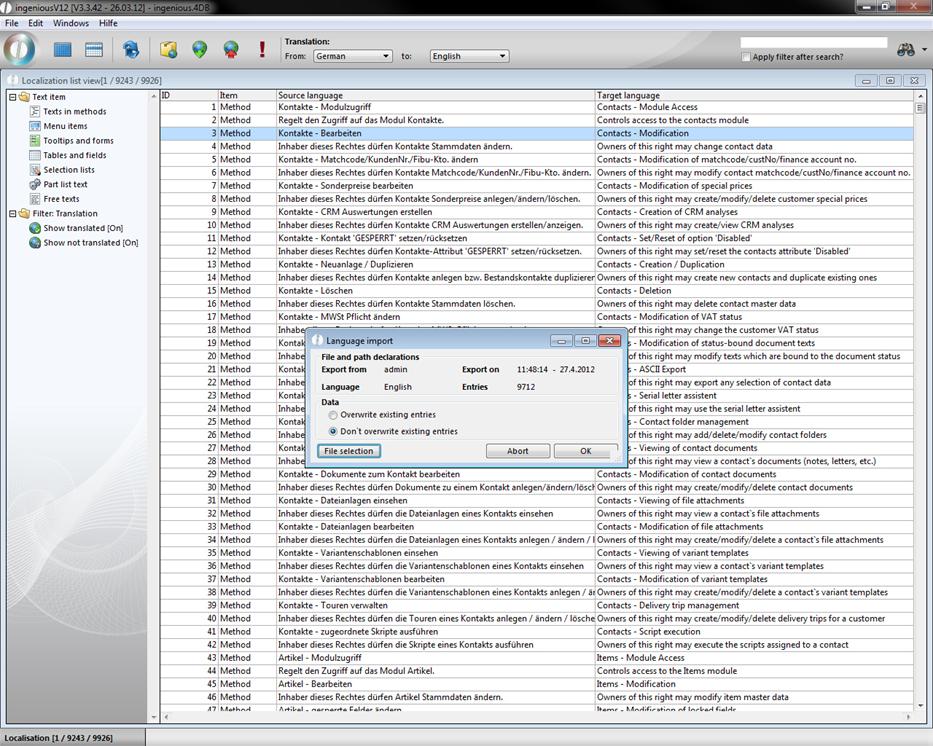
To import new texts, click on the import icon . In the opening language import window, you will select the desired import file and determine whether existing data should be kept or overwritten.
Individual language adaptation from Ingenious.V12
You already know how to use the language option “Individual” to create your own fields. With this language option, you also have the possibility to adapt all existing texts to your individual needs. In the following exercises, you change the menu text “Project time recording” to “Time management”.
-
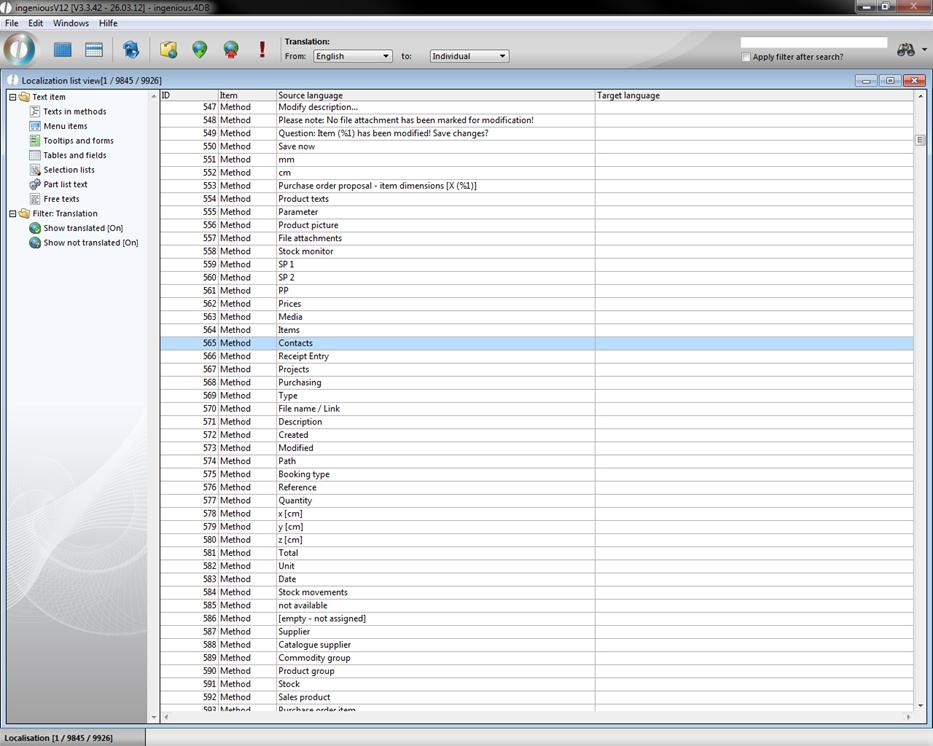
In the “Translation to” field, select the option, “Individual” and select the area “Text in method” in the left column.
-
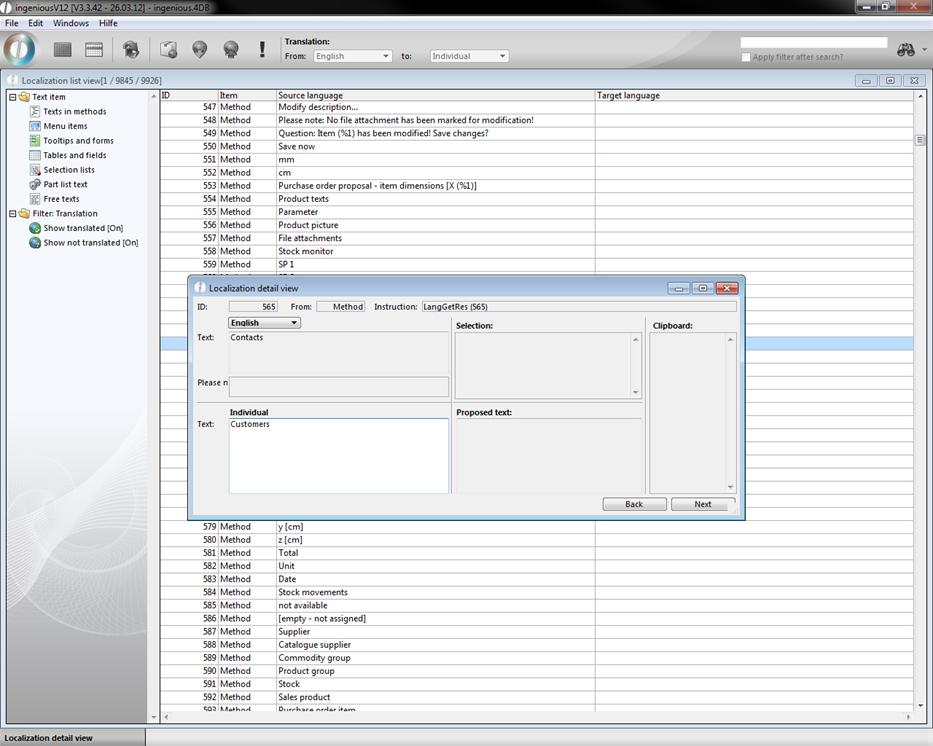
Open the desired method by double-clicking and enter the modification in “Individual” area.
-
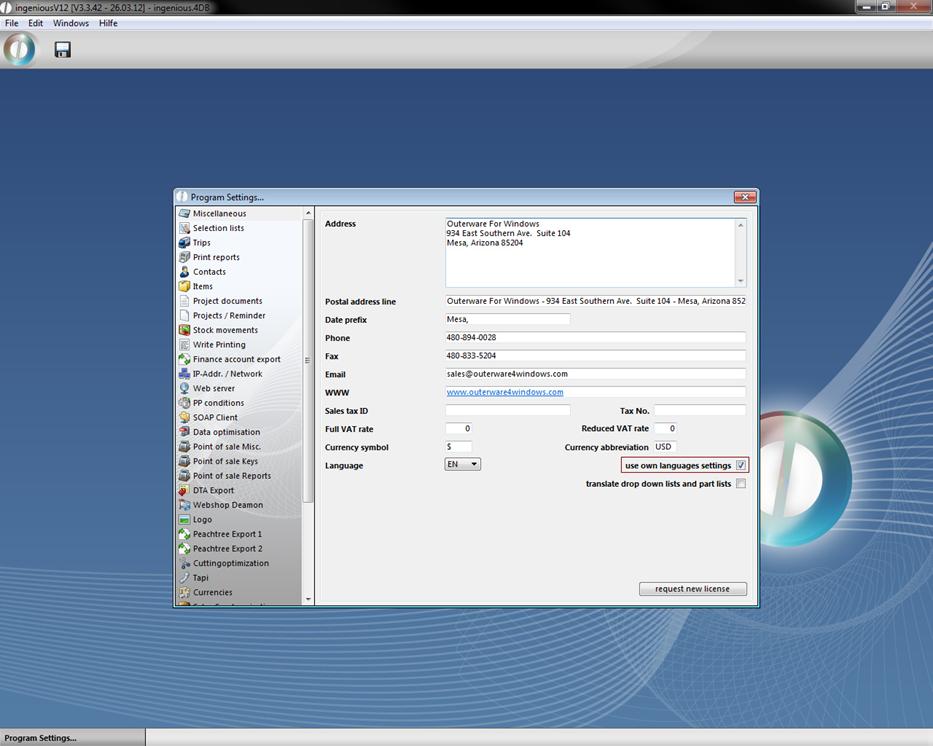
Leave the localization module and open the program settings and enter a checkmark in the area, “Use individual language adaptation”. Leave the program settings and save the changes.
-
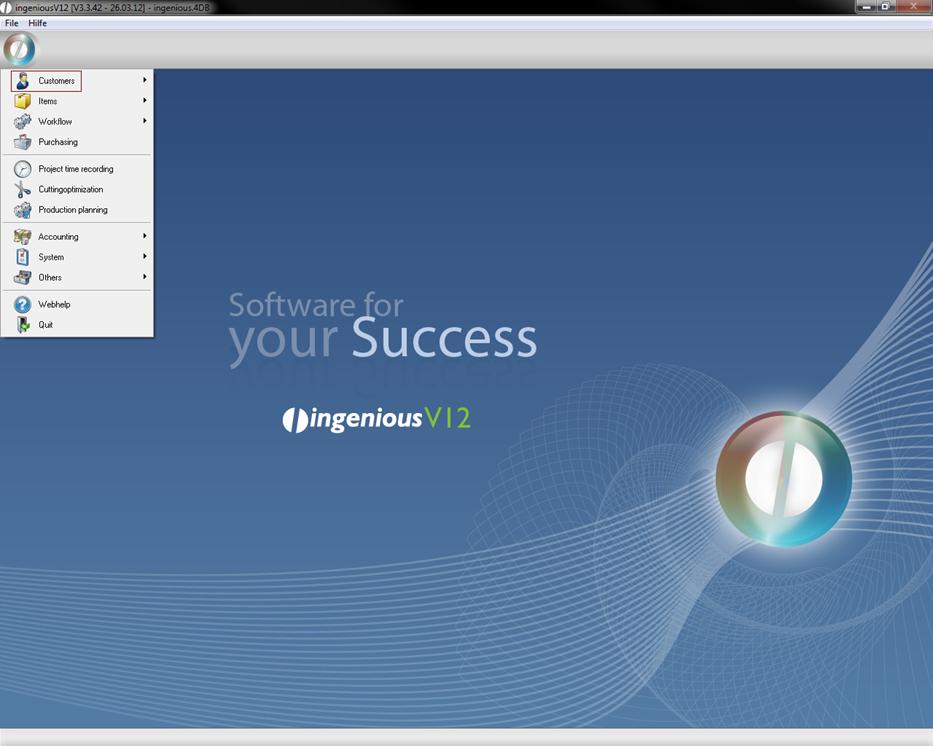
Close Ingenious.V12 and log on again. The desired modification will be made in the menu.
Internal language customization
With the help of the localization module selection lists, part lists and free texts can be assigned with individual names resp. localize the user inputs into another language. In the field “Translation from” the value “internal” has to be chosen. In the following practice the selection list “payment type” of the receipt entry will be translated.
1. Select in the field “Translation” the option “internal” and “german”. In the left column choose “selection lists”
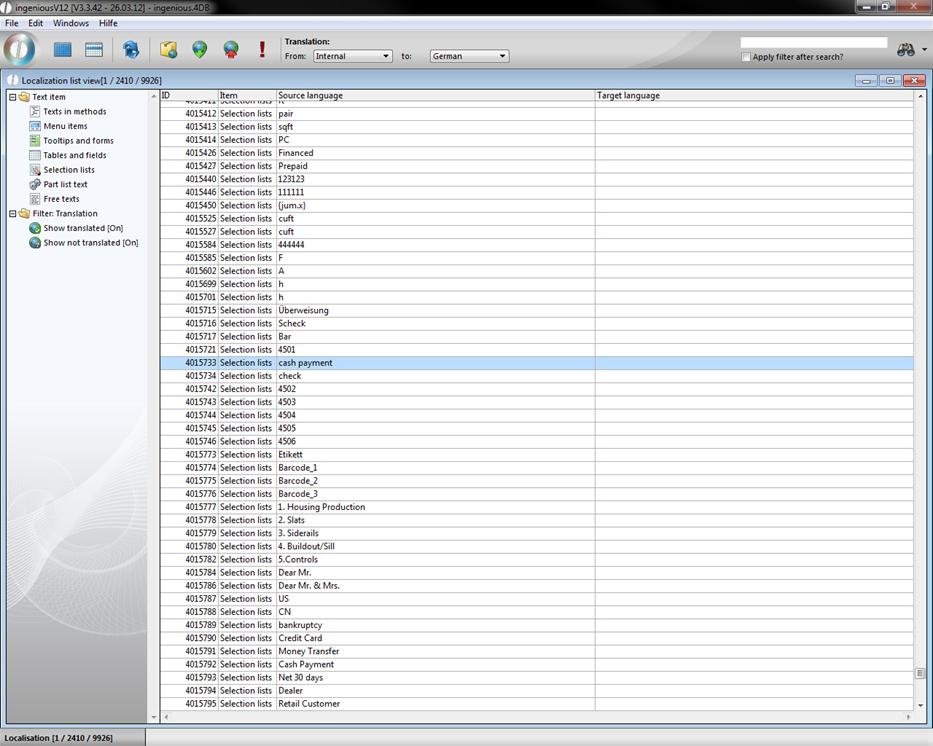
2. With a double click open the detail view of the entry 4015733 and enter in the category “German” in the field “Text” the description “bar”.
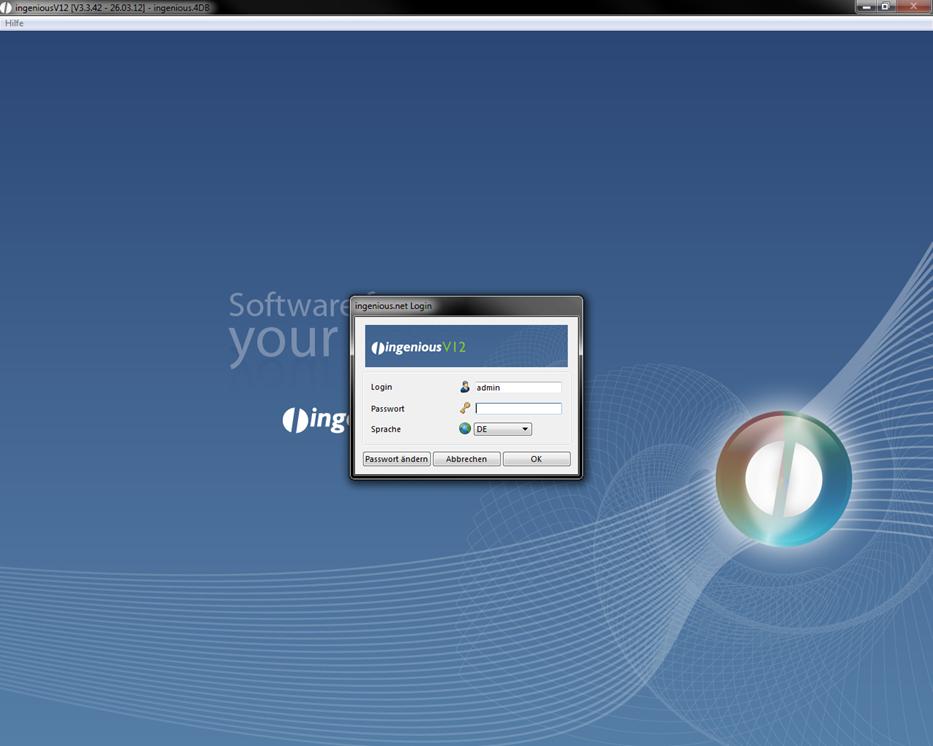
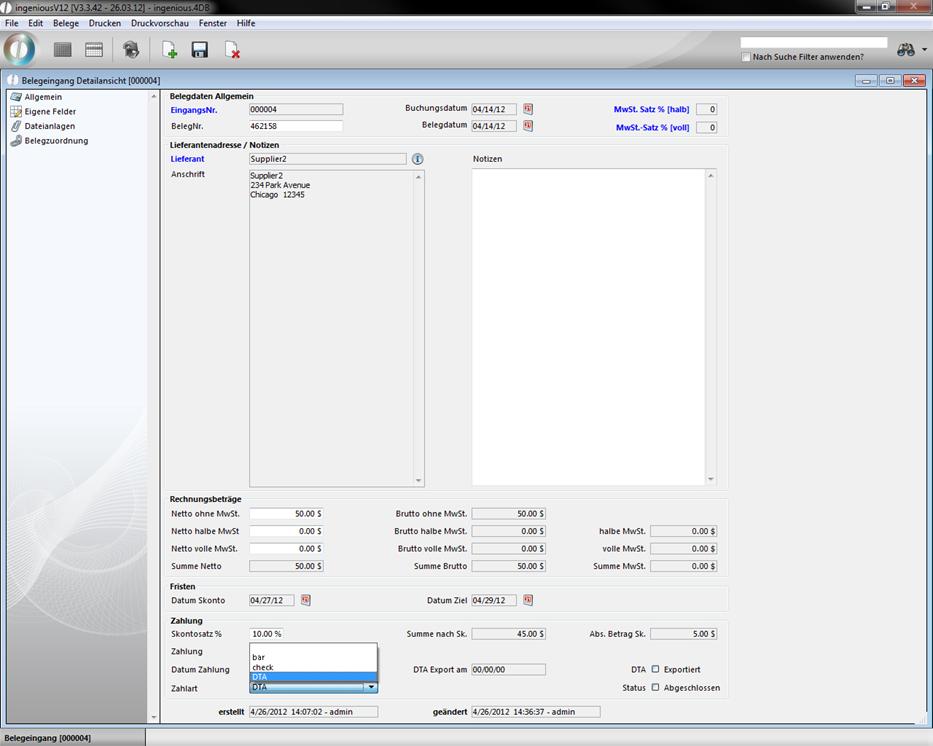
3. If you have done the desired translations, save the changes and close ingenious.v12. Now restart ingenious, choose the language DE and login again.
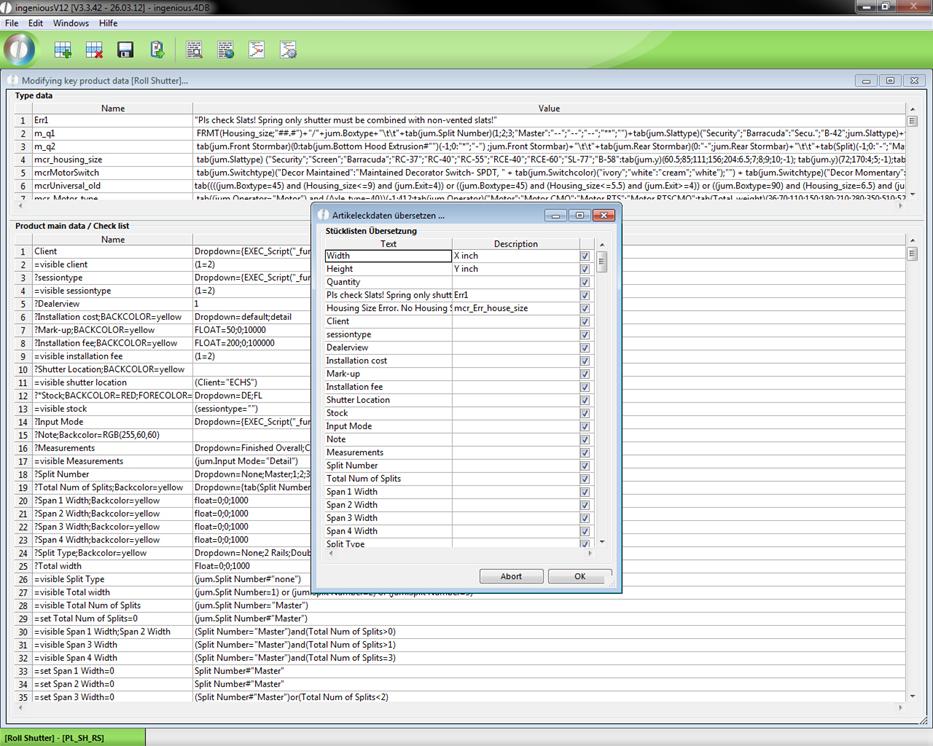
The values of the selection lists are taken from the program settings and the part lists from the items. You can transfer the part list texts to the localization module. For instance open any part list and click on the button “create part list translation”  . A window will open up where all texts of the corresponding part list are listed. In the column description you can add a advanced description, which should simplify the translation. If you uncheck the field in the last column of a line, then the text will not be transferred to the localization.

You can also add additional descriptions directly in the localization module. With the button  you can modify the part list texts.
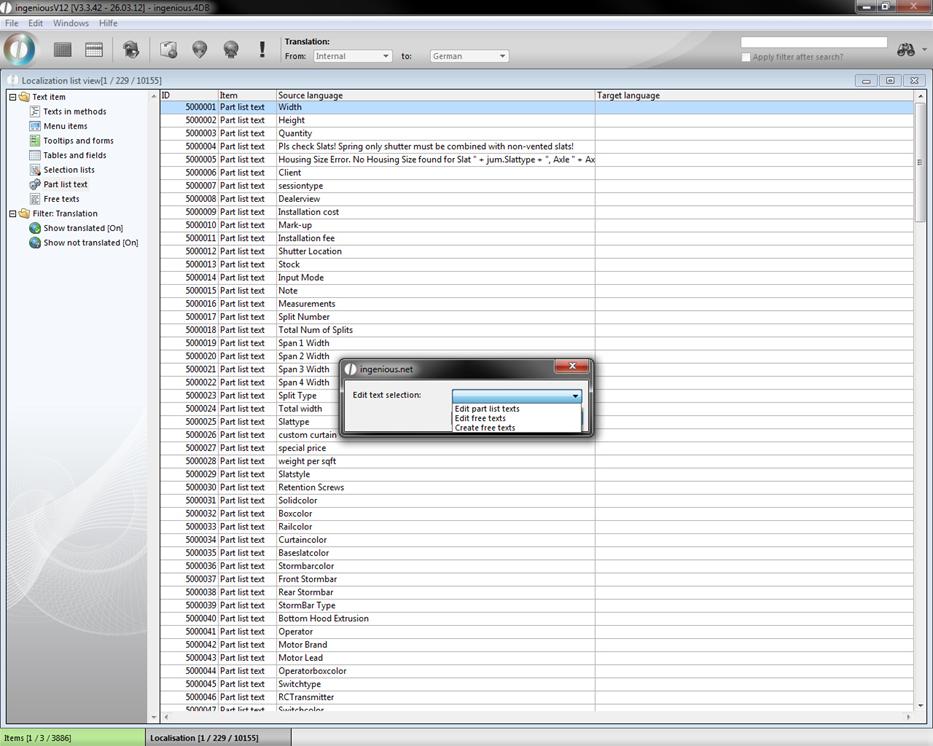
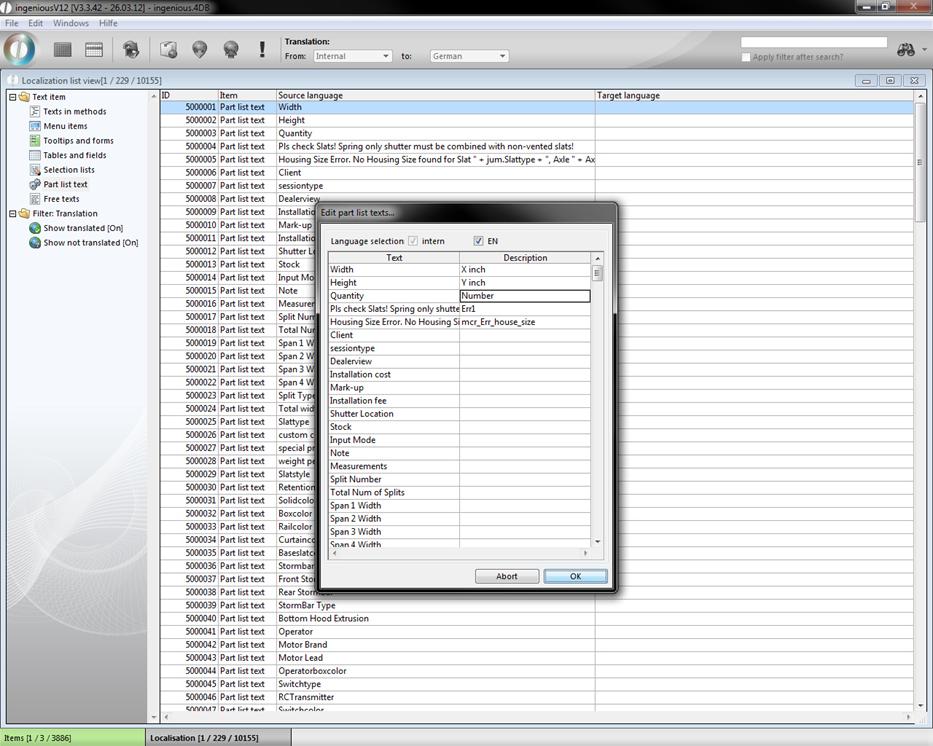
A window will open up, where all part list texts are listed. Here you have got the possibility to rename the texts or add a description in the field “Description”. When you check the field “EN”, the additional descriptions will be displayed automatically in the english translation.
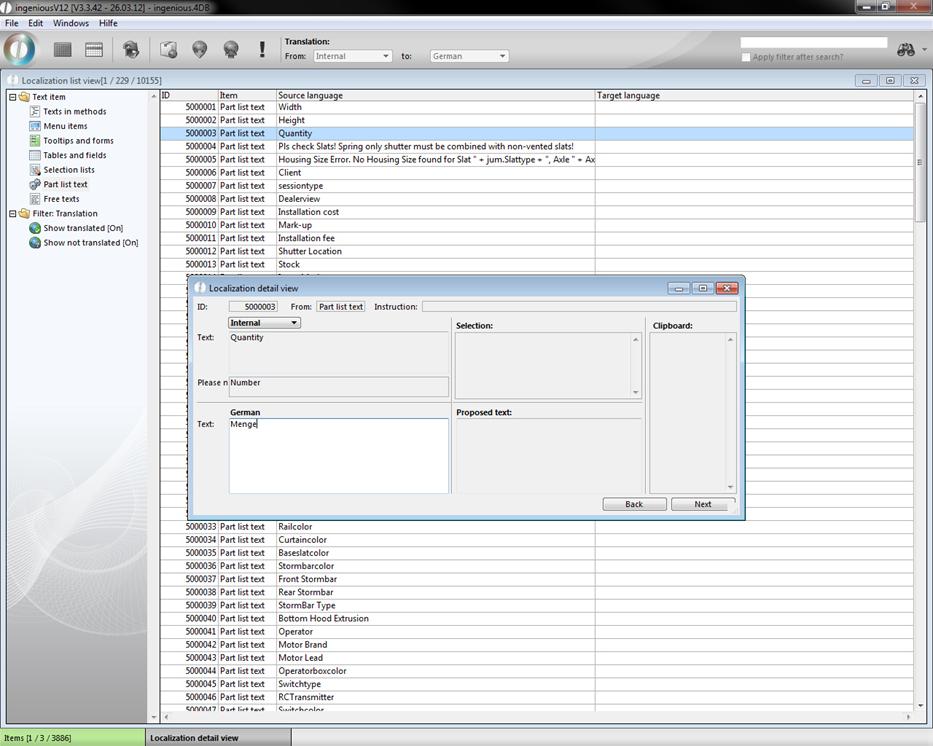
After you accepted the changes by clicking “ok” and open the detail view of a term, the defined description is displayed.
The free texts are created and modified with the help of the button , too. Free texts are free definable, they don’t have a special meaning in ingenious.V12. With the help of free texts you can for instance create descriptions and translations for individual scripts.