Button overview
 Create new project
 Convert project
 Save current state now
 Delete selected project
 Create task
With the creation of projects, there are two different dates: the printing date and the system date.
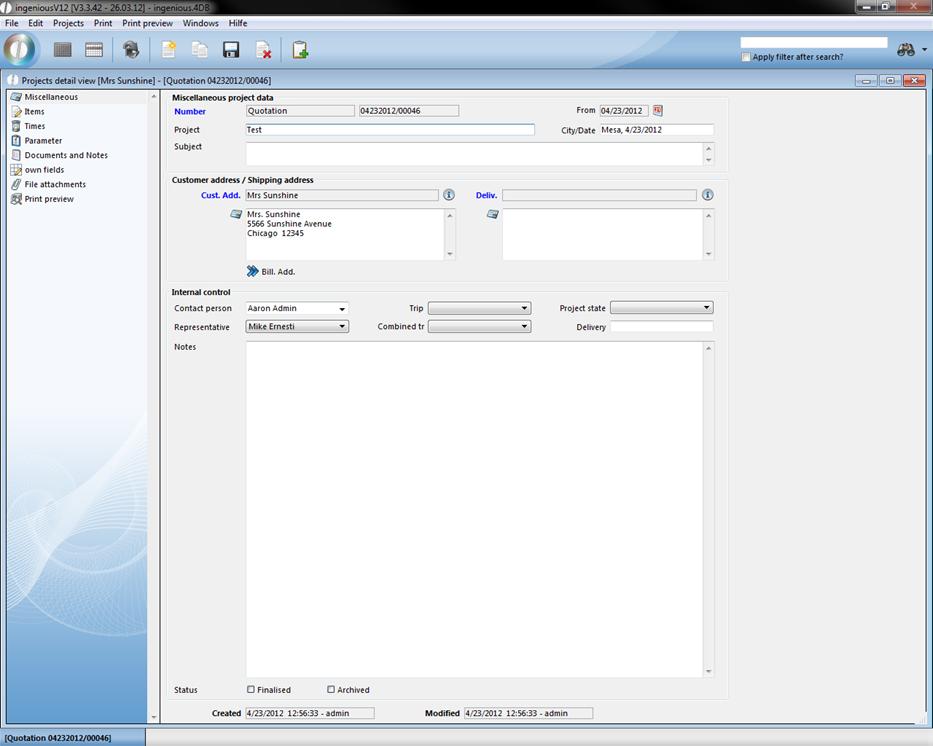
Aside from the assigned or assumed general data that is automatically taken from the pre-settings, such as document number and invoice address, you can add other more. If the goods are not directly delivered to the contacts but rather to a construction site or another storage area, you can add a delivery address or other addresses with  “Address 3/Adresse 4” or select them from the contact folder. Special placeholders have been developed for printing these data in the project documents. For corresponding entries in the contact folders, these fields are automatically filled with the new setup of projects.
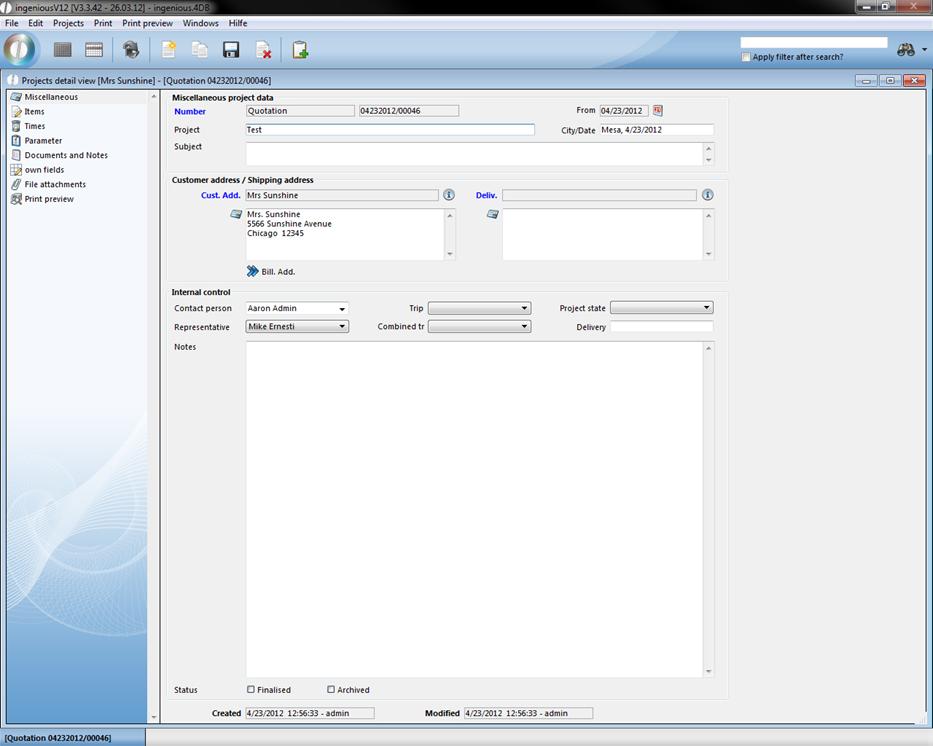
General project detail view
In addition, the trip, the representative and the collective trip are selectable. In the “Project status” list field, the actual project status can be entered so that every employee sees what the last processing status of the project was. You determine entries in the list field in the program settings in the area “Selection lists” using the module, “Projects”.
Status change / Stock
In order to have an overview of projects not yet finished, you should always update the status with the status change. In order to finish a project, highlight the “Closed” field with a checkmark by clicking on the small box. You should close an order confirmation for example if this has become forwarded to an invoice/final invoice or to an invoice that protects against unwanted changes. Documents are archived if they are no longer necessary. This raises the clarity of your list views. With forwarding of the projects, you can allow them to be archived automatically. In case of emergency, archived documents can also be reverted back to. In the “Program settings” management tool in the “Projects/Reminder” column, you can also determine when a stock posting should be explained (after the end of a confirmation order, invoice or delivery notice). However, a condition for it is that in the item detail view in the “Stock monitor” column, the field “Automatic stock guide” was activated. The field “Stock posted” then appears with the projects where stock postings should be carried out with an order confirmation as in the example shown. When you close the confirmation order, the stock of the used items is updated at the same time. The small box beside “Stock booked” is marked and the stock is reduced in the product catalog by the amount of the projects. This way you have a permanent stock booking guide and the current supplies always ready for necessary review of an order.